Plum Borough School District students can join a Google Meet directly through Google Classroom when their teacher has provided a meeting link.
Follow the steps below to access your class meeting and check your camera and microphone settings before joining.
Make sure your Chromebook is turned on, connected to the internet, and signed in with your PBSD student Google account. Your teacher must also have made a Google Meet link available in Google Classroom.
Step 1: Open Google Classroom
- Turn on your Chromebook and sign in with your PBSD student account.
- Open Google Chrome.
- Go to Google Classroom .
- Select the class you need to join.
Step 2: Find Your Google Meet Link
- Open the class page in Google Classroom.
- Look near the top of the class page for the Google Meet link.
- Select the meeting link to open Google Meet.
Google Classroom – Meeting Link Example
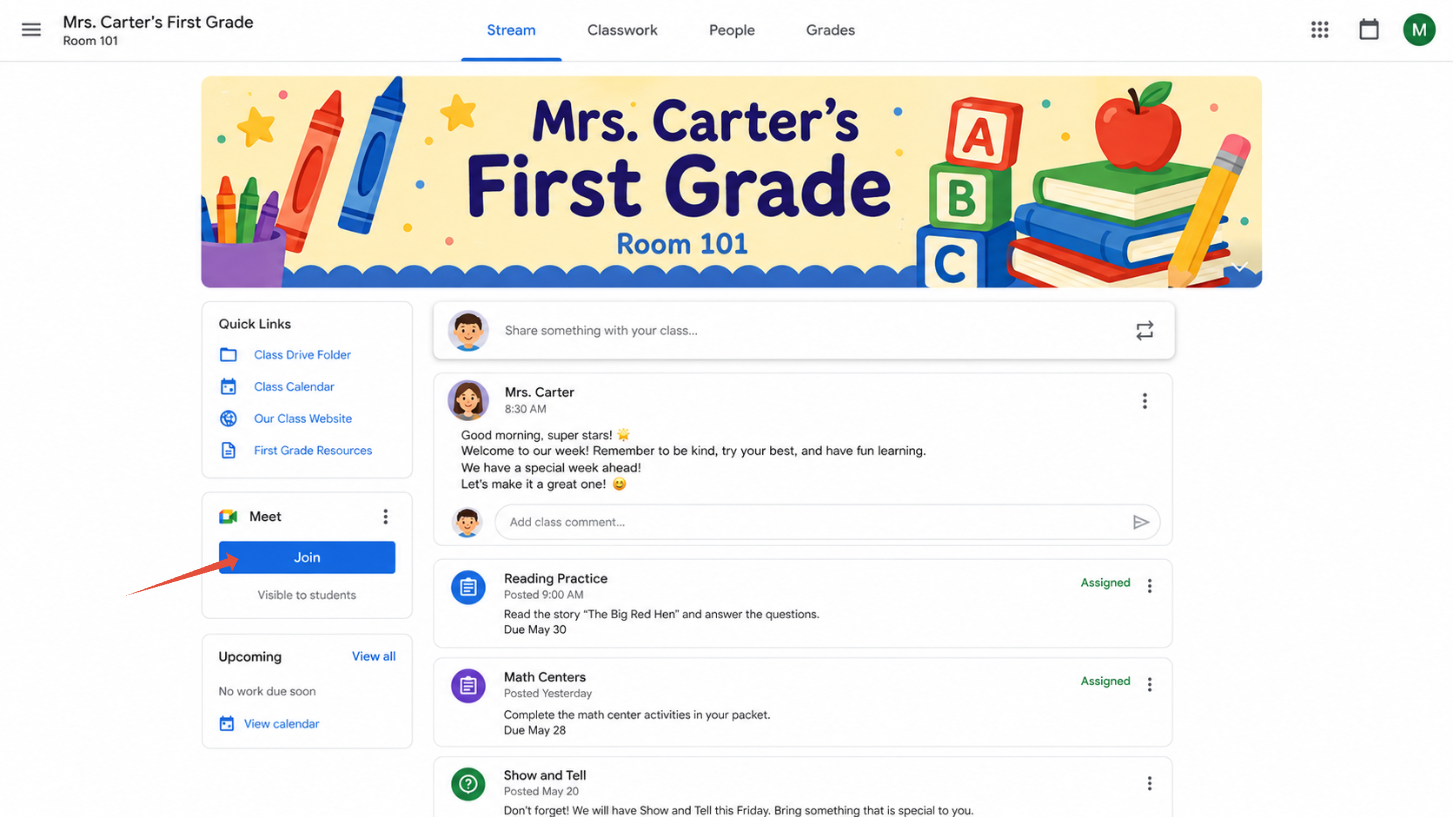
If you do not see a Google Meet link, your teacher may not have made one available. Check your teacher's instructions or contact your teacher for the correct meeting link.
Step 3: Check Your Camera and Microphone
- Wait for Google Meet to open.
- Check your camera preview, if available.
- Use the Microphone button to turn your microphone on or off.
- Use the Camera button to turn your camera on or off.
Step 4: Join Your Meeting
- When you are ready, select Join now if that option is available.
- If prompted to request access, follow the on-screen instructions and wait for your teacher to admit you.
- Once admitted, you can participate in the meeting with your teacher and classmates.
Your teacher may have specific expectations for camera use, microphone settings, and participation during a Google Meet. Follow the instructions provided by your teacher.
Having Trouble Joining?
If you cannot join your Google Meet, try the following:
- Check your internet connection: Make sure your Chromebook is connected to Wi-Fi.
- Verify your account: Confirm you are signed in with your PBSD student Google account.
- Check the meeting link: Make sure you are using the link provided by your teacher.
- Camera or microphone issues: Check that Google Meet has permission to use these devices.
- Restart if necessary: Close Google Meet and reopen the meeting link.
Still Need Help?
If you continue experiencing technical difficulties joining a Google Meet, contact techsupport@pbsd.net .
Include your school or building, a description of the issue, and any error message you receive. Do not include your password in your support request.
Was this article helpful?
That’s Great!
Thank you for your feedback
Sorry! We couldn't be helpful
Thank you for your feedback
Feedback sent
We appreciate your effort and will try to fix the article