Overview
If you are a Site Responder and did not receive a notification when a Centegix alert was triggered, follow the steps below to verify that you are properly logged into the Centegix Desktop application on your Mac and that notifications are enabled.
Step 1: Check the Centegix Desktop icon
Look at the menu bar at the top of your screen and locate the Centegix Desktop icon.

Step 2: Verify login status
- If you are logged in, you will see the screen below when clicking the icon:
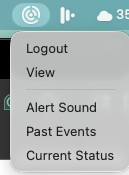
- If you are not logged in, you will see the option shown below:
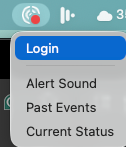
Select Login. This will open a webpage where you can sign in using your Centegix credentials.
Once logged in, you should begin receiving Centegix alerts.
Step 3: If issues continue
Click the Centegix icon in the menu bar and select “Current Status.”
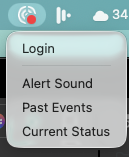
Capture the Current App Status. You will be presented with a Current App Status page.
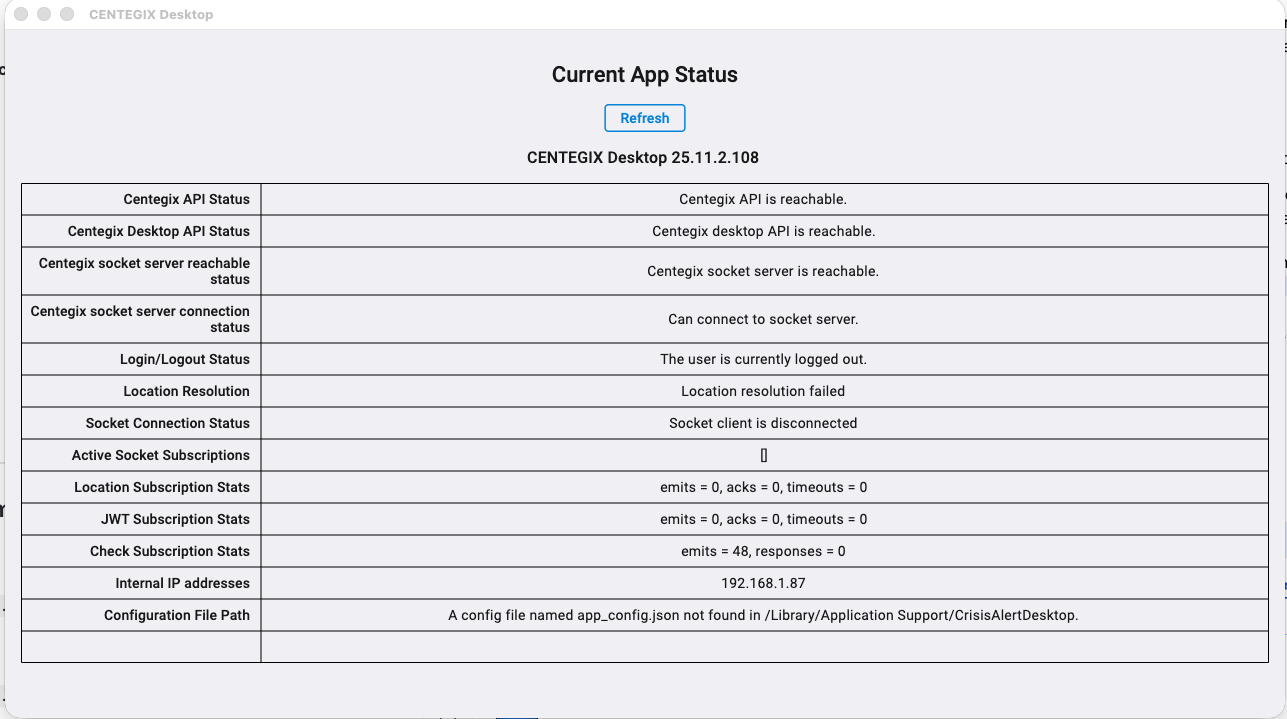
Please take a screenshot of this page and attach it when replying to this ticket.
To take a screenshot:
- Press Command + Shift + 4 on your keyboard.
- Use your cursor to highlight the Current App Status window.
- The screenshot will save to your desktop.
You can then drag and drop the screenshot into your ticket response or attach it to your reply email so Technology Support can review the information and troubleshoot the issue.
PBSD Technology Department techsupport@pbsd.net
Additional Resources
- Centegix Mobile App FAQs: https://www.centegix.com/mobile-app-faq/
- Centegix Mobile App Troubleshooting Guide: https://success.centegix.com/article/540-mobile-app-faqs
- Centegix Mobile App: Setup Instructions
- Centegix (ENS): Reset Your Centegix Account Password
- Centegix Mobile App: Not Receiving Mobile App Notifications?
Was this article helpful?
That’s Great!
Thank you for your feedback
Sorry! We couldn't be helpful
Thank you for your feedback
Feedback sent
We appreciate your effort and will try to fix the article