Overview
The Centegix Mobile Application allows designated staff members to receive emergency notifications and view event activity directly from their mobile device. This article provides setup instructions and important information regarding eligibility and configuration.
Who Should Download or Have Access to This Application?
The Centegix Mobile Application is only for staff members classified as Site Responders.
Site Responders are designated by a District Administrator. Staff members assigned this responsibility will be formally notified.
New Site Responders will receive an email from support@centegix.com with instructions to set up their account and download the mobile app.
If you are unsure whether you are a designated Site Responder, please contact your building administrator.
Initial Email from Centegix
New Site Responders will receive an email from support@centegix.com that includes:
- A link to set up your Centegix account
- A link to download the Centegix mobile app
- Instructions for completing your login setup
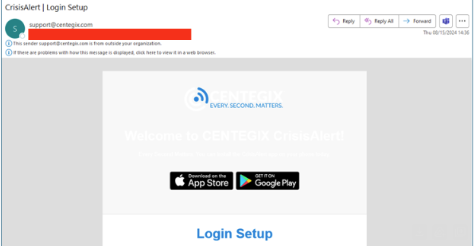
Important: You must set up your Centegix account and password before downloading and logging into the mobile app.
Set Up Your Centegix Account
- Open the Centegix email from support@centegix.com.
- Click the link provided to set up your password.
- When prompted, enter your email address.
- Create and confirm your password.
Once your password is created, your Centegix account setup is complete.
Download the Mobile App
After setting up your account:
On your mobile device:
- Open the App Store (iPhone) or Google Play Store (Android).
- Search for Centegix.
- Download and install the app (confirm the app icon matches the Centegix branding referenced in your email).
Log In to the App
- Open the Centegix app.
- Log in using:
- Your district email address
- The password you just created
Once logged in, the Centegix Mobile App is ready for use.
You should be able to:
- View the locations you have access to
- See historical event activity (if applicable)
iPhone Push Notification Settings (Important)
To ensure you receive emergency notifications on an iPhone:
- Open Settings
- Tap Notifications
- Select the Centegix app
- Ensure Allow Notifications is toggled ON
- Set notifications to Always Deliver Immediately
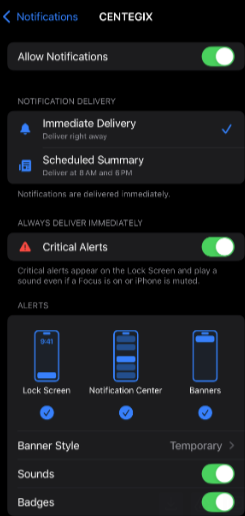
⚠️ This setting is critical to ensure timely emergency alerts.
Frequently Asked Questions. For additional information, please visit: https://www.centegix.com/mobile-app-faq/
Need Assistance? If you have any questions or require additional support, please contact: PBSD Technology Department techsupport@pbsd.net
Was this article helpful?
That’s Great!
Thank you for your feedback
Sorry! We couldn't be helpful
Thank you for your feedback
Feedback sent
We appreciate your effort and will try to fix the article