If your Chromebook camera or microphone is not working in Google Meet or another approved district application, you may need to check your Chromebook's privacy settings.
Follow the instructions below to verify that camera and microphone access is enabled.
These instructions apply to Chromebooks running ChromeOS. Some settings may look slightly different depending on your Chromebook's ChromeOS version.
1. Open Chromebook Settings
Click the status area in the bottom-right corner of your Chromebook screen, near the clock.
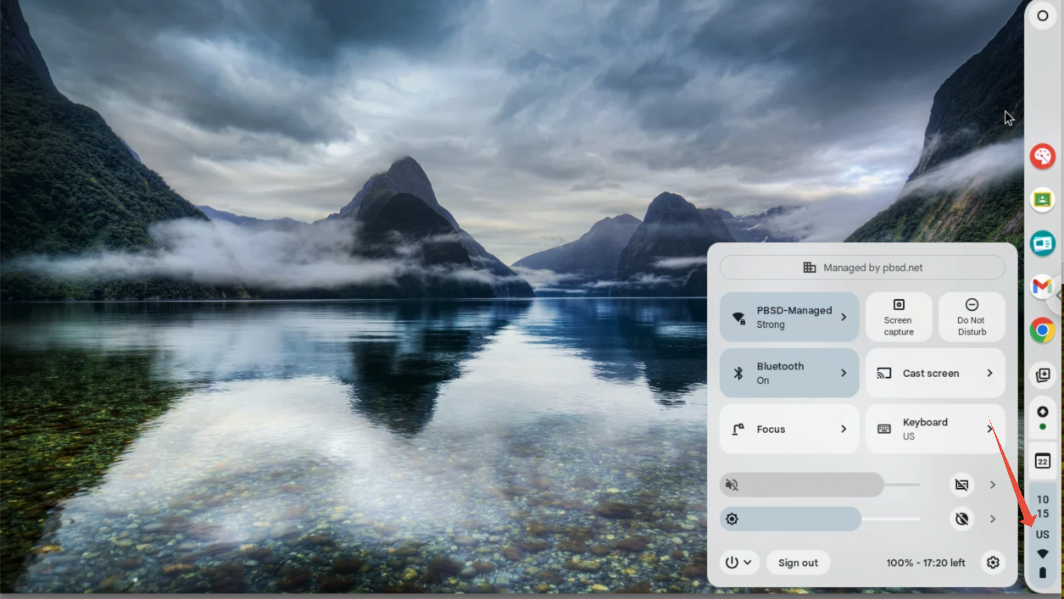
Select the Settings gear icon.
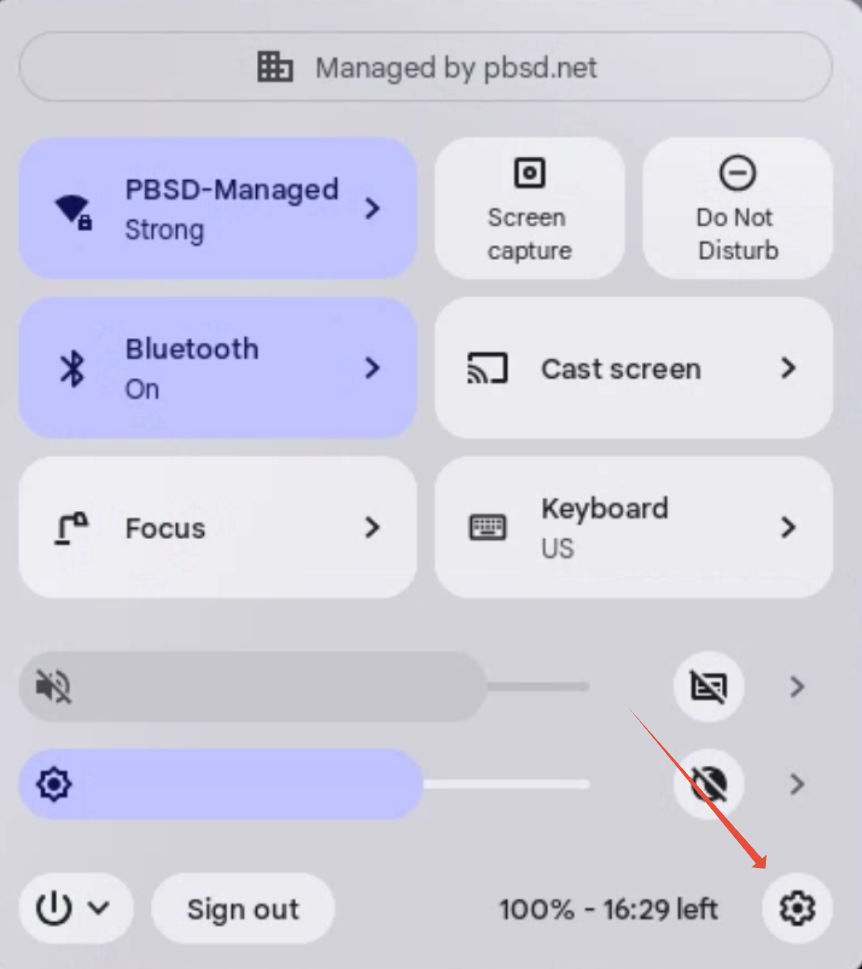
2. Navigate to Privacy and Security
In the Chromebook Settings window, locate and select Privacy and security.
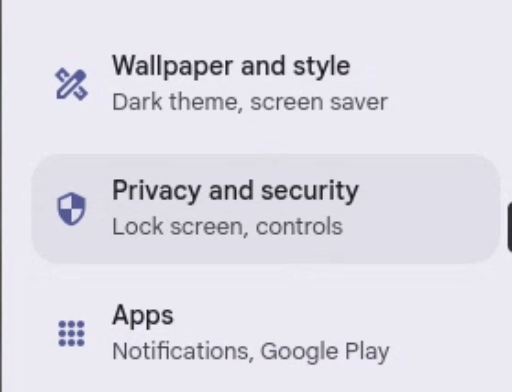
3. Open Privacy Controls
Under Privacy and security, select Privacy controls.

4. Check Camera and Microphone Access
Locate the Camera access and Microphone access settings.
Make sure both are enabled if you need to use your Chromebook's camera and microphone.
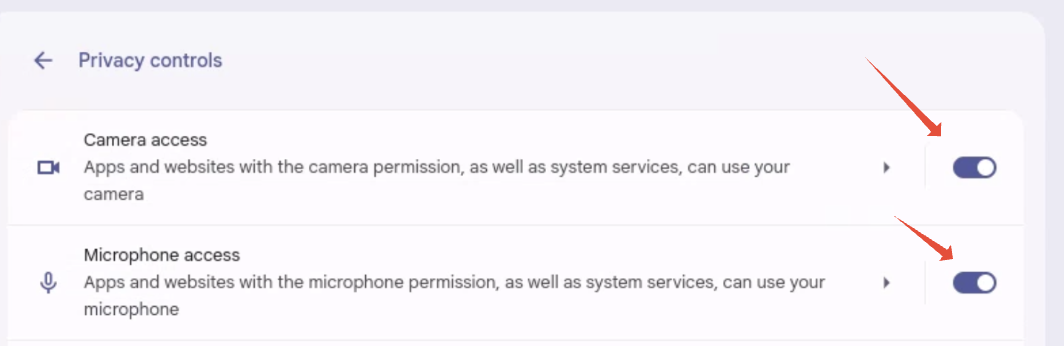
Some Chromebook settings may be managed by the PBSD Technology Department. If a camera or microphone setting is unavailable or locked, please contact Technology Support. Do not attempt to bypass district device restrictions.
5. Test Your Camera and Microphone
After confirming the privacy settings:
- Close the Chromebook Settings window.
- Return to Google Meet or the application you were using.
- Refresh the page or reopen the application if necessary.
- Test whether your camera and microphone are working.
If the camera or microphone still does not work, the website or application may also require permission to access those devices.
Enabling camera and microphone access in ChromeOS does not automatically grant permission to every website. If prompted by an approved website, select Allow when camera or microphone access is required.
6. If the Problem Continues
If the camera or microphone still does not work, try restarting your Chromebook.
You can also review the related Knowledge Base article: Chromebook – Camera & Microphone Troubleshooting.
7. Need Help?
If you are unable to enable camera or microphone access, or the issue continues after troubleshooting, contact the Technology Department.
Please include your school or building, the affected application, and whether the camera, microphone, or both are not working.
Was this article helpful?
That’s Great!
Thank you for your feedback
Sorry! We couldn't be helpful
Thank you for your feedback
Feedback sent
We appreciate your effort and will try to fix the article