The Promethean ActivePanel 10 uses a connected Chromebox to access educational applications, interactive classroom tools, and web-based resources.
This guide will help PBSD staff set up their Promethean account, install applications, and begin using classroom tools.
You will need access to your assigned Chromebox, your district Google account, and an activated Promethean account with the appropriate license.
1. Available Promethean Applications
The following applications are available as part of the district's ActivePanel 10 setup:
- Promethean
- Promethean Annotate – Classroom annotation tools
- Promethean Screen Share – Screen sharing capabilities
- Promethean Spinner – Interactive selection tool
- Promethean Timer – Classroom timing tool
2. Request Your Promethean Account
Staff must have an active Promethean account and an assigned license to use the applications.
- Contact techsupport@pbsd.net to request your Promethean account.
- The Technology Department will create your account and assign the required license.
- You will receive confirmation when your account is ready.
If you have not received confirmation that your account is ready, contact Technology Support before proceeding with application activation.
3. Install and Activate Promethean Applications
- Sign in to the Chromebox connected to your Promethean board.
- Open the Google Play Store.
- Locate the available Promethean applications.
- Download and install each required application.
- When launching an application for the first time, allow the required permissions.
- Sign in using your district Google account to activate the application.
Watch the district's step-by-step video demonstrating the Promethean application setup process.
Watch the Setup Video →4. Access a Classroom Whiteboard
Staff can also access a web-based whiteboard without opening Promethean Annotate.
- Open Google Chrome on your Chromebox.
- Open the PBSD.net Bookmarks folder.
- Select Promethean Resources.
- Choose Explain Everything Whiteboard.
This provides a quick browser-based whiteboard option for classroom use.
5. Additional Promethean Resources
Additional tools and training resources are available in the district's Promethean bookmarks.
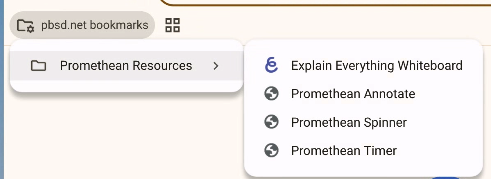
- Promethean Annotate: Watch Training Video
- Promethean Spinner: View Support Guide
- Promethean Timer: View Support Guide
6. Troubleshooting
Cannot Access a Promethean Application
- Confirm that you are signed in to your assigned Chromebox.
- Verify that your Promethean account has been activated.
- Confirm that you are using your district Google account.
- Contact Technology Support if the issue continues.
Application Is Missing
- Open the Google Play Store and check for the application.
- If it is unavailable, contact Technology Support for assistance.
Sign-In or Licensing Issue
- Confirm that you received your Promethean account activation notification.
- Verify that you are signing in with the correct district Google account.
- Contact Technology Support if your account or license is not working.
7. Official ActivePanel 10 Resources
For additional documentation, product guides, and support information, visit the official Promethean resource center.
ActivePanel 10 – Promethean Support →
8. Need Help?
For assistance with your Promethean account, application installation, licensing, or ActivePanel 10 setup, contact:
Please include your building, room number, and a brief description of the issue.
Was this article helpful?
That’s Great!
Thank you for your feedback
Sorry! We couldn't be helpful
Thank you for your feedback
Feedback sent
We appreciate your effort and will try to fix the article