Overview
Read&Write requires a product code to activate the appropriate license. PBSD teachers and students who need to activate Read&Write must first contact Technology Support to obtain the product code.
Audience
- Teachers
- Students
Requesting the Product Code
Before activating Read&Write, teachers and students must obtain the PBSD product code.
- Contact PBSD Technology Support at techsupport@pbsd.net .
- Request the product code needed to activate Read&Write.
- Once Technology Support provides the product code, follow the activation instructions below.
Important: You must obtain the Read&Write product code from PBSD Technology Support before completing the activation process.
Activating the License
Once you have received the product code from Technology Support, you can activate your Read&Write license.
Manual Activation
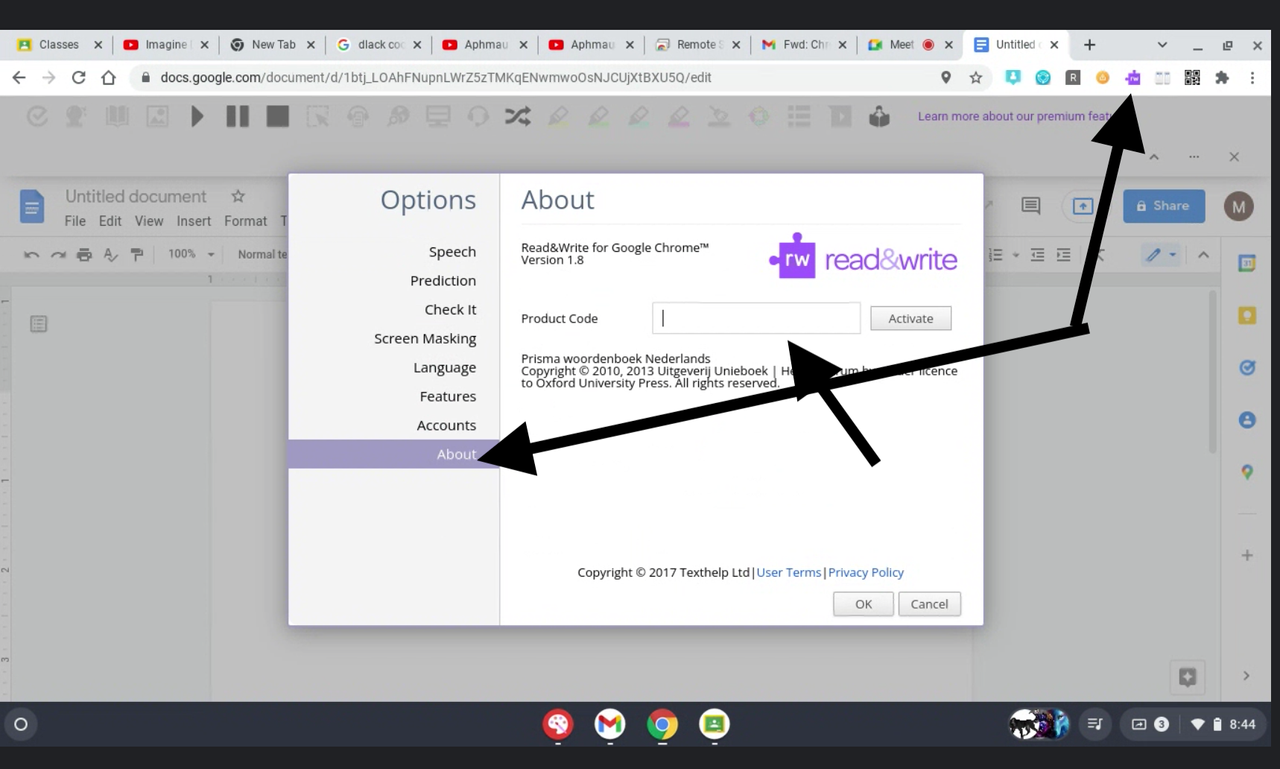
- Open a blank document.
- Locate and select the Read&Write (RW) extension icon in your browser.
- Wait for the Read&Write toolbar to open.
- Select the three-dot menu (⋮) on the Read&Write toolbar.
- Select About from the menu.
- Enter the Product Code provided by PBSD Technology Support.
- Follow any additional prompts to complete the activation process.
Product Code: The Read&Write product code is provided by PBSD Technology Support. Contact techsupport@pbsd.net if you need the code.
Licensing Guide
Read&Write also provides an official licensing guide with additional instructions for activating the product.
Refer to the Read&Write Licensing Guide for additional licensing information.
Tip: Have the product code provided by Technology Support available before beginning the activation process.
Common Issues
I Do Not Have a Product Code
Contact PBSD Technology Support at techsupport@pbsd.net to request the Read&Write product code.
Unable to Find the Activation Option
- Open the Read&Write toolbar.
- Select the three-dot menu (⋮).
- Select About.
- Look for the option to enter the Product Code.
Product Code Does Not Work
Verify that the product code was entered correctly. If the code is still not accepted, contact PBSD Technology Support for assistance.
Need Help?
If you need the Read&Write product code or experience an issue activating your license, contact PBSD Technology Support at techsupport@pbsd.net .
Related Articles
Was this article helpful?
That’s Great!
Thank you for your feedback
Sorry! We couldn't be helpful
Thank you for your feedback
Feedback sent
We appreciate your effort and will try to fix the article