Plum Borough School District students who use Imagine Edgenuity can access the application through the district's Clever portal.
Make sure you can access your district Clever account. Imagine Edgenuity must also be available to you in Clever.
Step 1: Open Clever
- Open a web browser on your device.
- Visit the PBSD Clever Login Portal .
- Sign in using your district's Clever login method if prompted.
Step 2: Find Imagine Edgenuity
- Once Clever opens, scroll through the available applications.
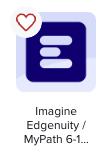
- Locate the Imagine Edgenuity application icon.
- Click the icon to open Imagine Edgenuity.
Look for the Imagine Edgenuity application icon, as shown below.
Step 3: Access Imagine Edgenuity
After selecting the Imagine Edgenuity icon, Clever will direct you to the application.
Follow any instructions provided by your teacher or PDLA program staff for accessing your courses.
Troubleshooting Login Issues
If you are unable to access Imagine Edgenuity:
- Confirm that you are signed in to the correct district Clever account.
- Look for the Imagine Edgenuity icon in your available applications.
- If the icon is missing, contact PBSD Technology Support.
- If the application opens but you cannot access your coursework, contact your teacher or PDLA program staff for guidance.
Need Assistance?
If you experience technical difficulties accessing Clever or Imagine Edgenuity, contact PBSD Technology Support.
techsupport@pbsd.netWas this article helpful?
That’s Great!
Thank you for your feedback
Sorry! We couldn't be helpful
Thank you for your feedback
Feedback sent
We appreciate your effort and will try to fix the article